


Lighting Effect
In this tutorial, I will show you how so improve boring text with some simple lighting. I used GIMP to produce this effect.

Lighting Effect
In this tutorial, I will give you a step-by-step guide on how to create an awesome motion blur like background with text, all done in GIMP It’s easy to make and looks awesome!
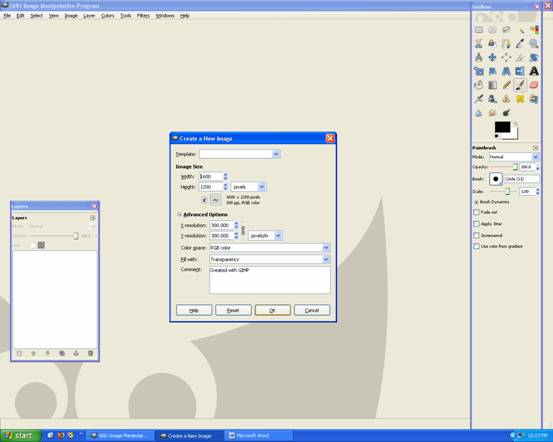
Begin by opening up Gimp –> making a 1600 x 1200 with 300dpi page and its transparency.
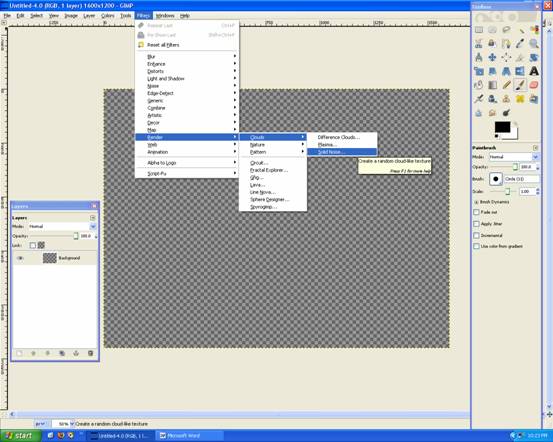
Now go Filters–>Render–>Clouds–>Solid Noise
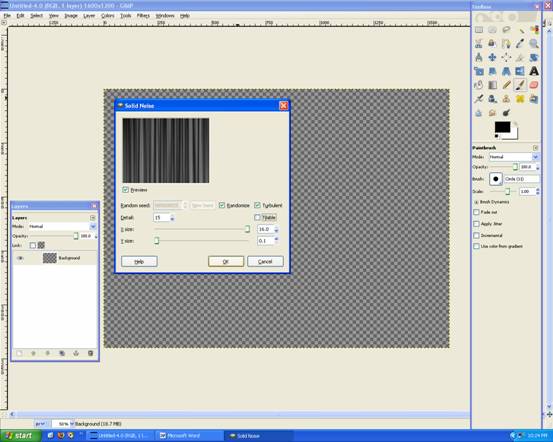
Settings are: Detail:15, X:16, Y:0.1, Turbulent and Randomize
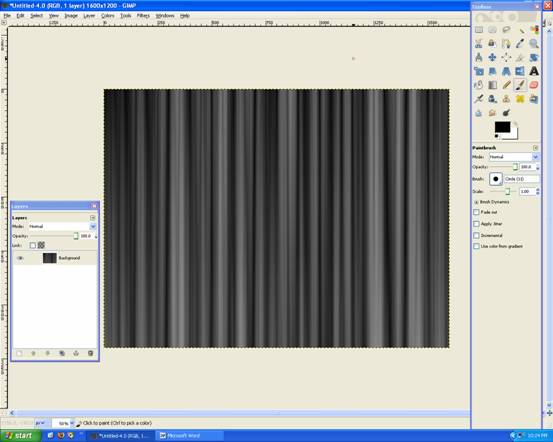
It should look like this:
Then go to Filters –> Distorts –> Polar Coordinates
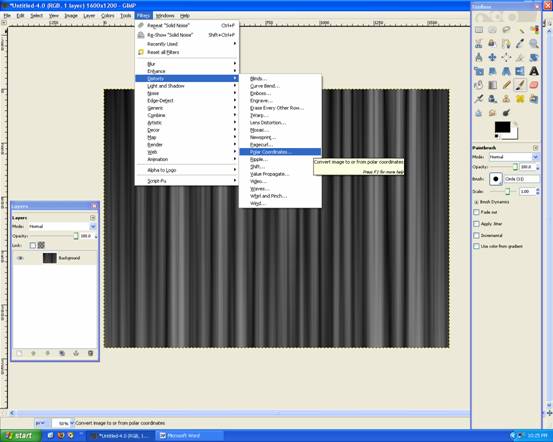
And set it to Both 0 and 0
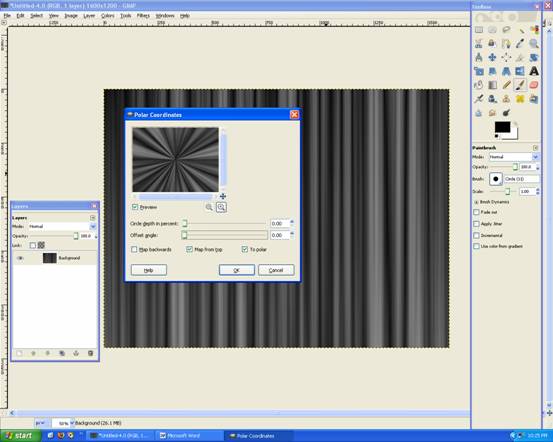
Should look like this:
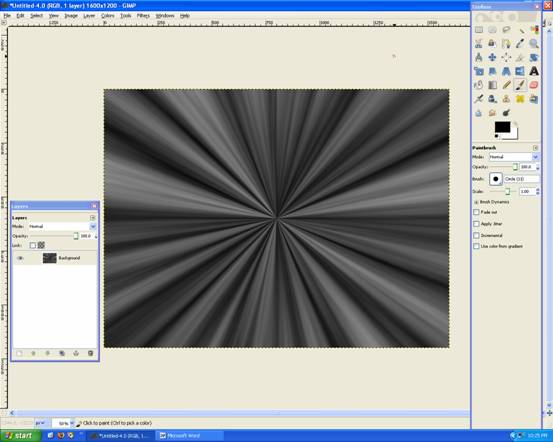
Grab the Gradient tool White FG only
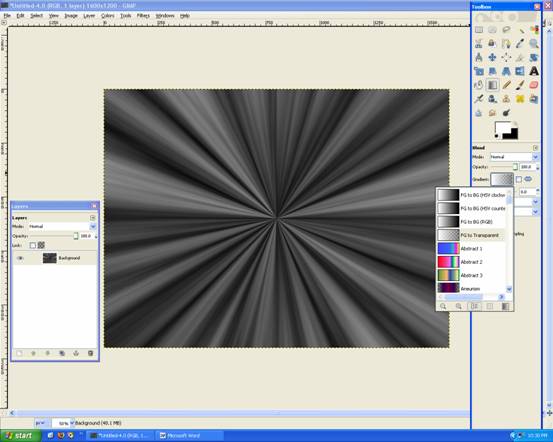
Apply the gradient like below:
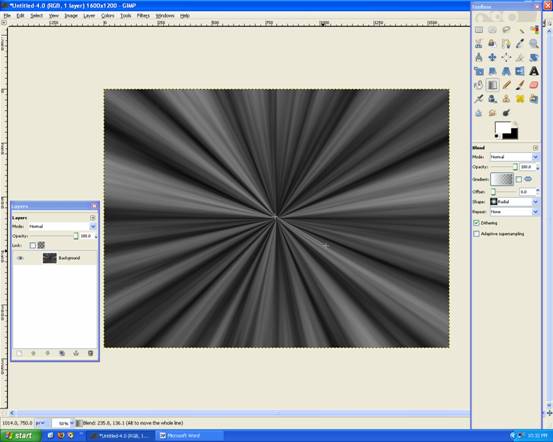
Should look like this:
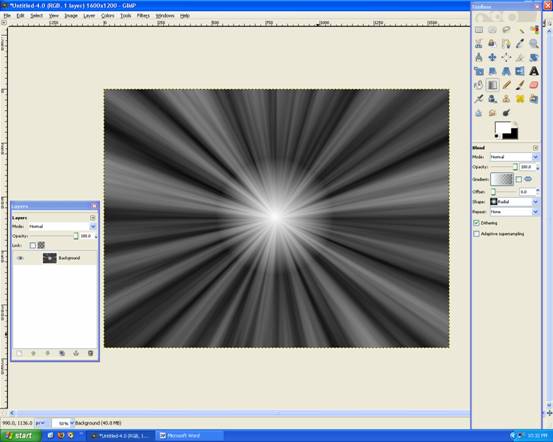
Now repeat that step!
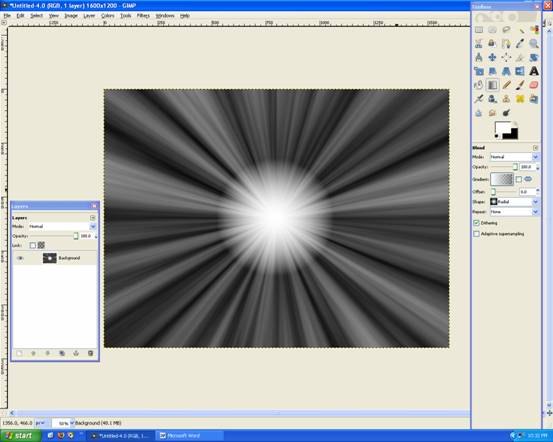
And then increase the length of the gradient outwards (like below):
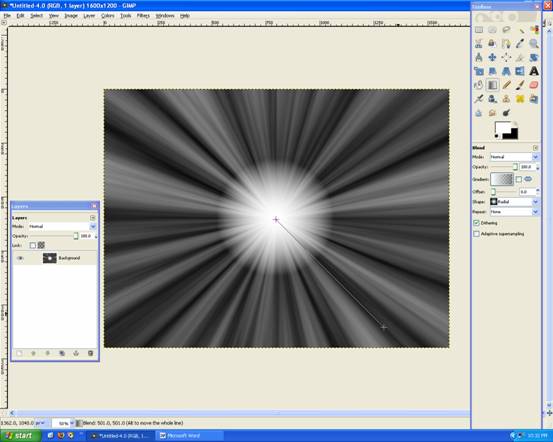
Should look like this:
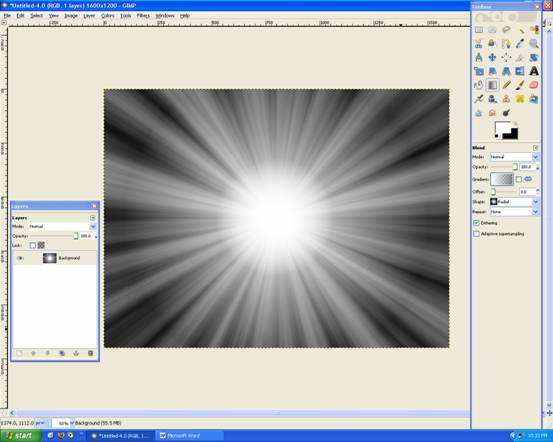
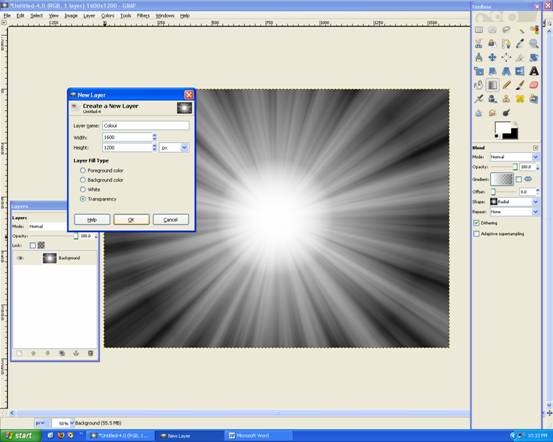
Create a new layer Name: Colour, and make it Transparency
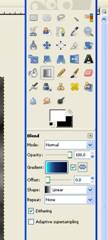
Now grab the Gradient Tool Set it to the following settings as shown below:
Apply Gradient Tool like below:
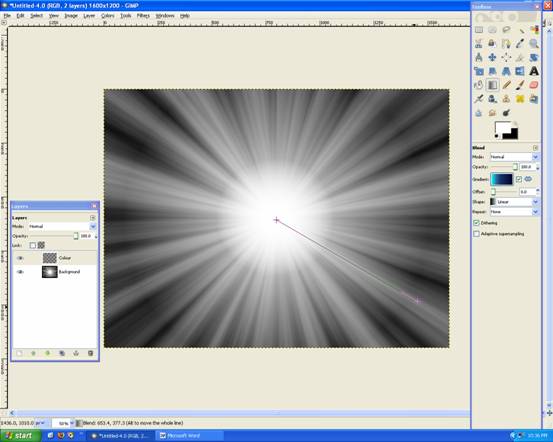
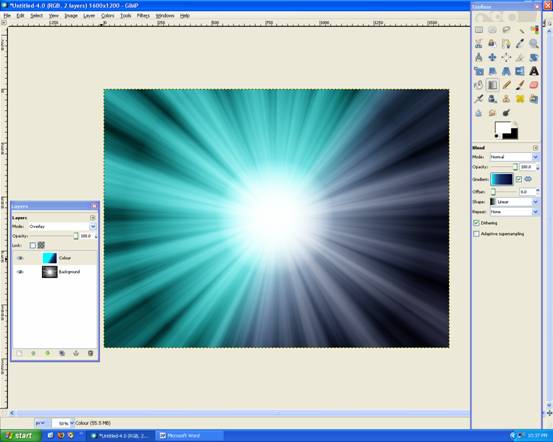
Should look like this now, and set the layer to OVERLAY:
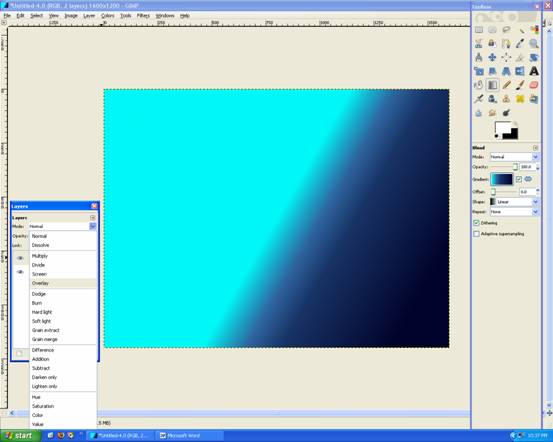
We have some colour now!
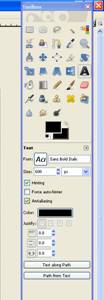
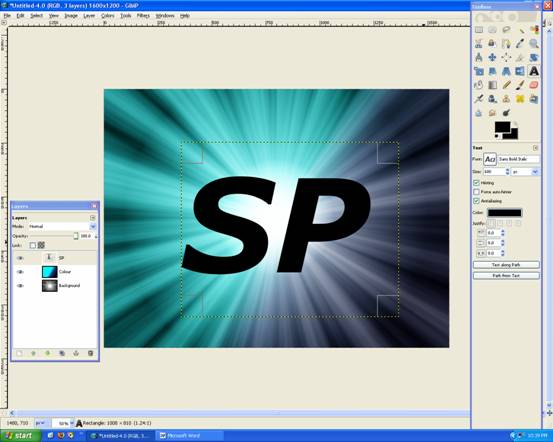
Now add your text, with the settings below:
Like this:
Then go Filters –> Light and Shadows –> Drop Shadow
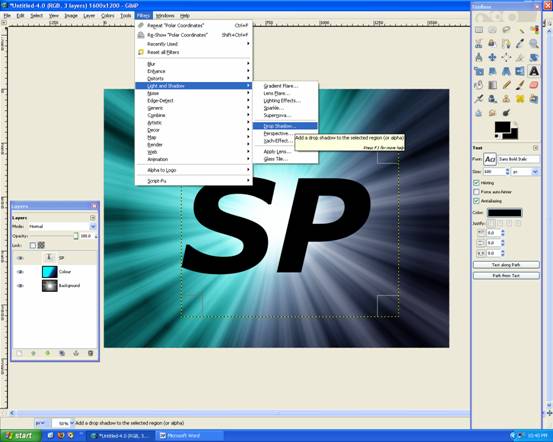
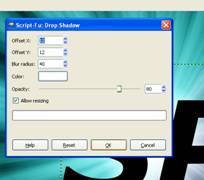
Set it to the following settings: 12, 12, 40, White , Opacity:80
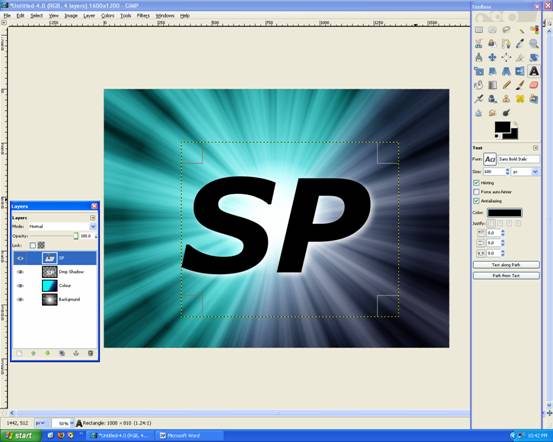
Looks like this, with a nice white shadow!
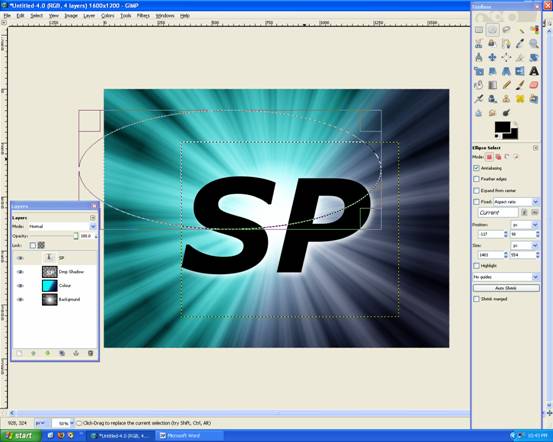
Now while on the text layer, use the Eclipse Tool and draw something like below:
Then go Layer –> Transperency –> Intersect with Selection
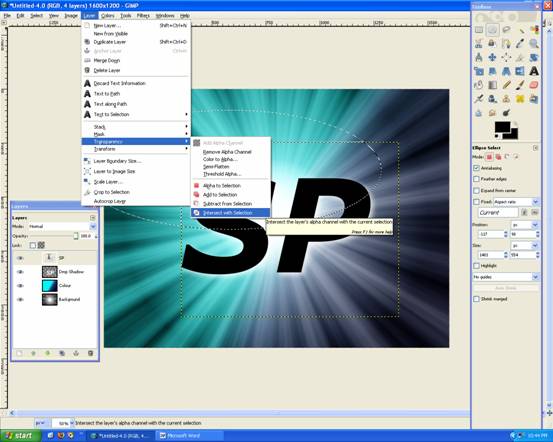
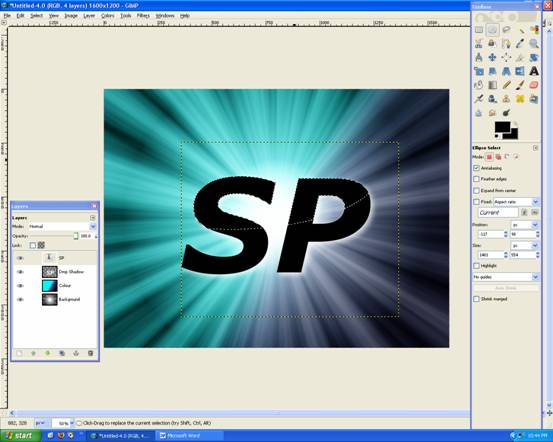
You now have a selection like this:
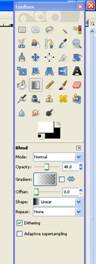
Grab the Gradient Tool with the following settings:
Apply the Gradient like below:
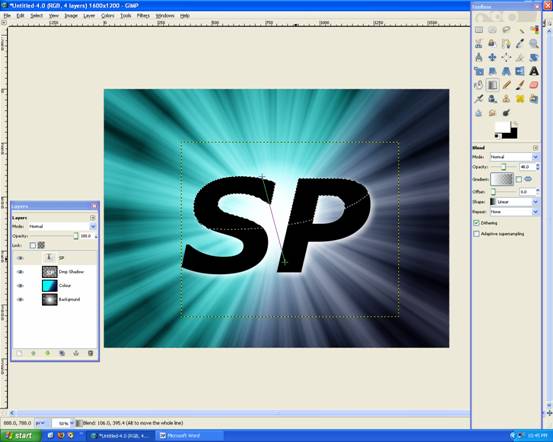
Now it looks like this, Deselect everything (Ctrl + Shift + A).
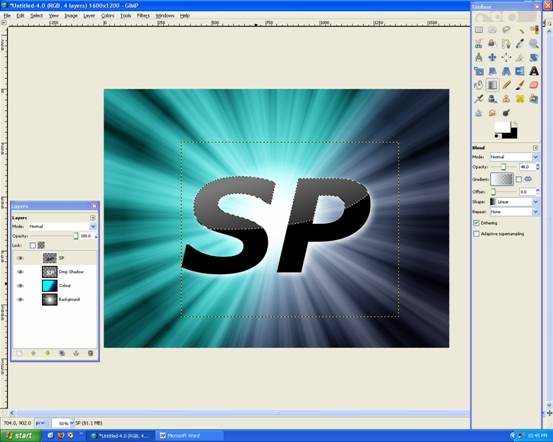
Merge that Layer Down

And then Duplicate
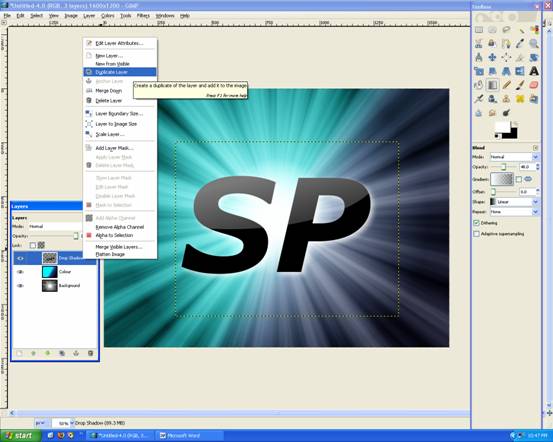
Then Rotate it 180degrees (Layer –> Transform –> Rotate 180)And Flip it the other way (Shift + F) Like this:
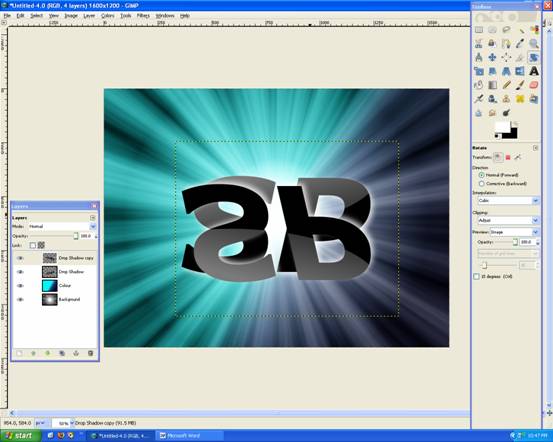
Then move it up so there is only a slight gap, like below:
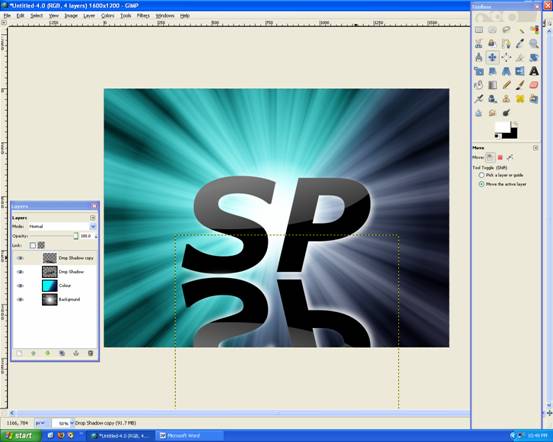
Now go Layer –> Mask –> Add Layer Mask
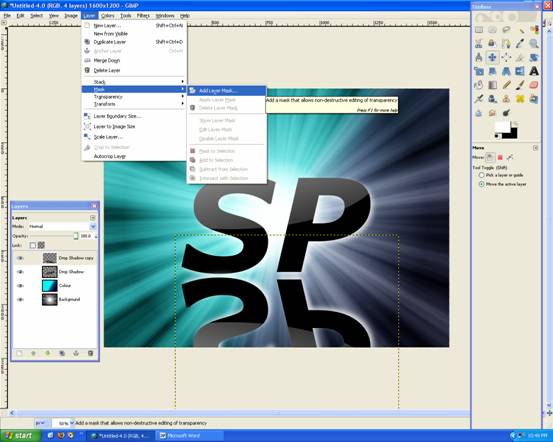
Choose WHITE (Full Opacity)
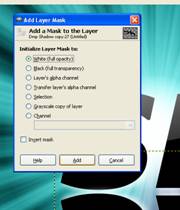
Now grab The Gradient Tool and set it to FG Only: Black , with 100% Opacity
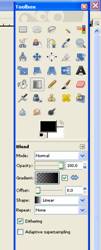
Apply Gradient like below:
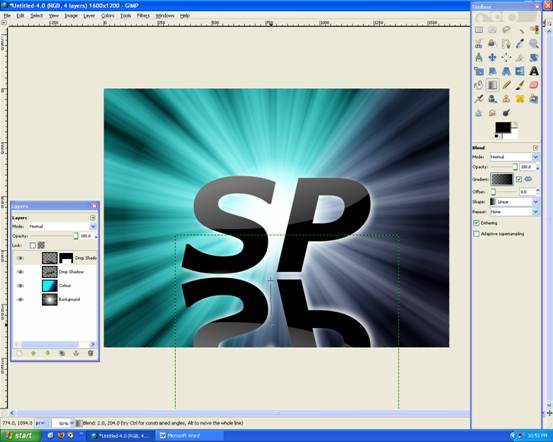
You get a nice fading reflection!
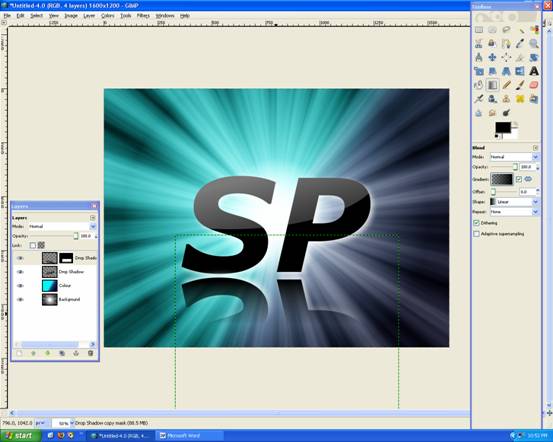
Now create a new Layer: Flare
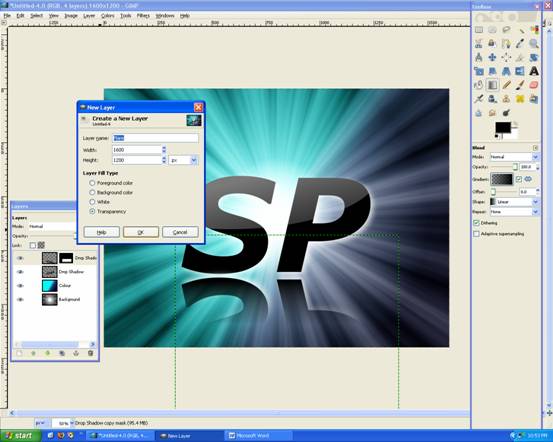
Rember the Coordiante of where you’d like the Lens Flare: mine is 420, 470:

And now Fill the Layer with Black
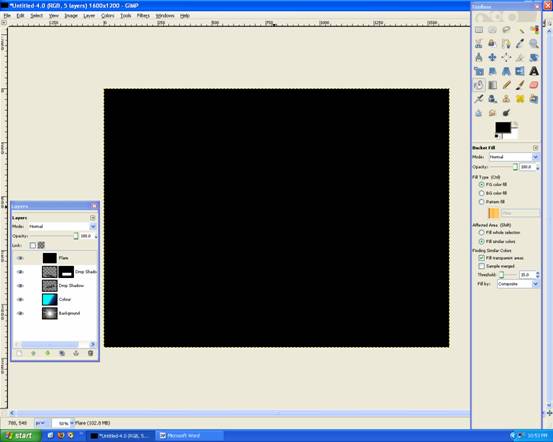
Now go to: Filters –> Light and Shadows –> Lens Flare
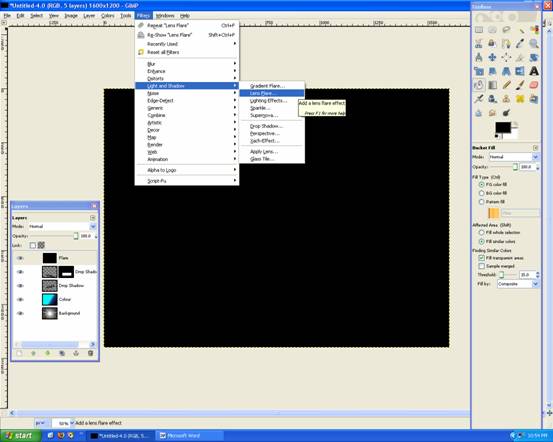
Enter your Cooridinates: X:420 Y:470
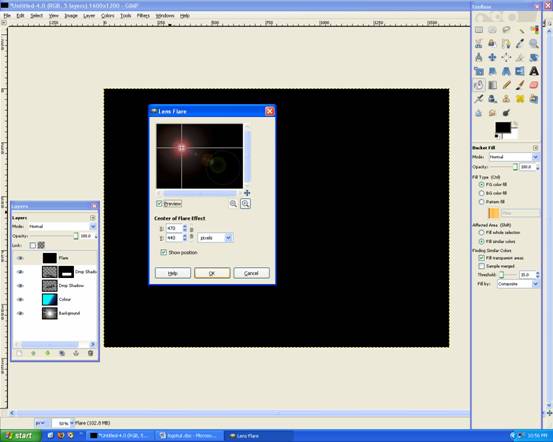
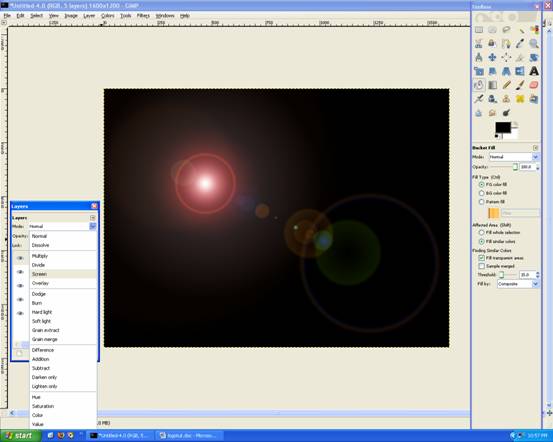
This may take awhile, but will look like this, Then change the Flare layer to SCREEN:
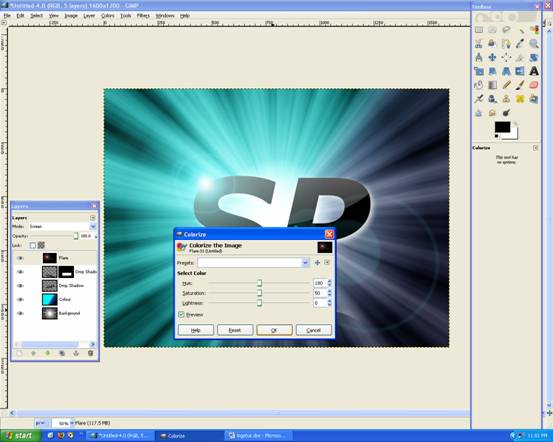
You may colorize this layer Color –> Colorize and change the HUE to whatever, I did Blue:
Make a new Layer: Name: Border and Transparency.
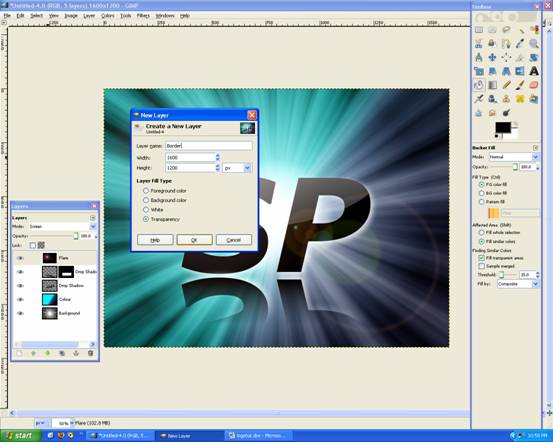
Grab the Gradient Tool and with the following settings:
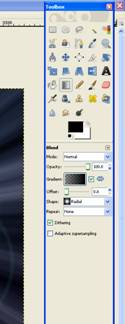
Apply gradient like this (below):
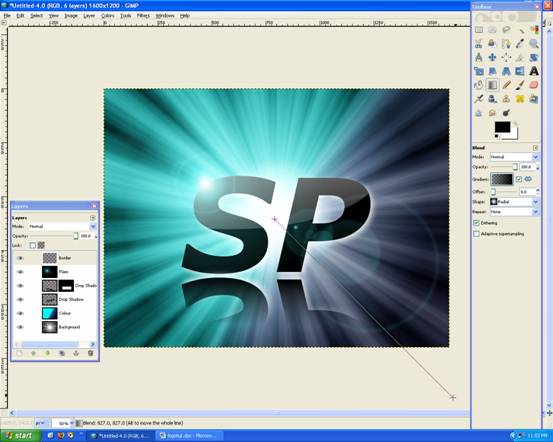
Looks like this:
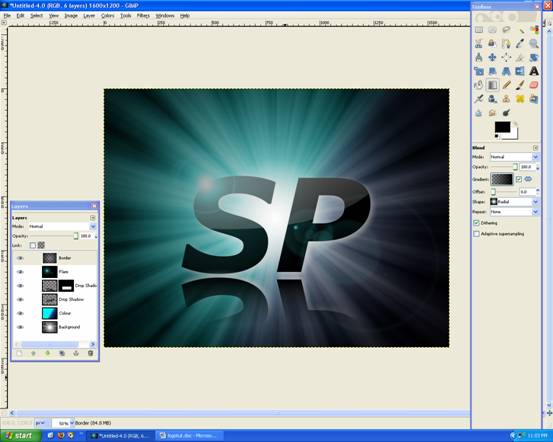
You may move the Layer down, to just 2nd last (above the Background Layer)
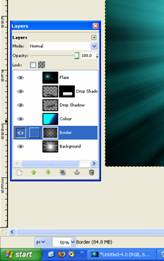
You’re finished!
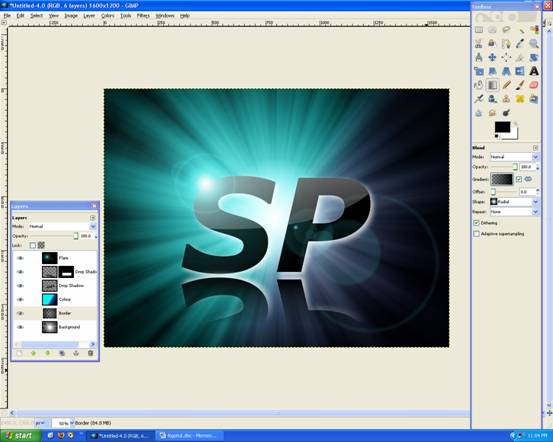
I hope you like it, please comment and Rate!

Written by Mike

Deprecated: Function the_author_description is deprecated since version 2.8.0! Use the_author_meta('description') instead. in /home/scottp12/public_html/wp-includes/functions.php on line 6121
Michael Scott is the publisher and photographer behind Scott Photographics! He is very passionate about his photography and enjoys sharing the best of his experiences for others to enjoy too! Contact Mike via email!


Deprecated: Function get_users_of_blog is deprecated since version 3.1.0! Use get_users() instead. in /home/scottp12/public_html/wp-includes/functions.php on line 6121
Thanks for the feedback, I’ll be updating some of the images very soon! :)
Deprecated: Function get_users_of_blog is deprecated since version 3.1.0! Use get_users() instead. in /home/scottp12/public_html/wp-includes/functions.php on line 6121
I liked it alot and it was very helpful. However, such a shame that the gradient tool pictures are bad quality because chaning gradient from linear to radial can be easily missed. Also I would suggest colorizing last and create a new layer because if you colourise on the layer of the flare you can’t change the position of the flare without making it look dodgy.
Nevertheless Great Turorial! :)