


Logo Tutorial
In this tutorial, I will show you how to make a very simple Logo ideal for “Favicons”. I used GIMP to produce this effect.

SPlogo
Begin by opening up Gimp –> making a 640 x 640 with 300dpi page and its transparency.
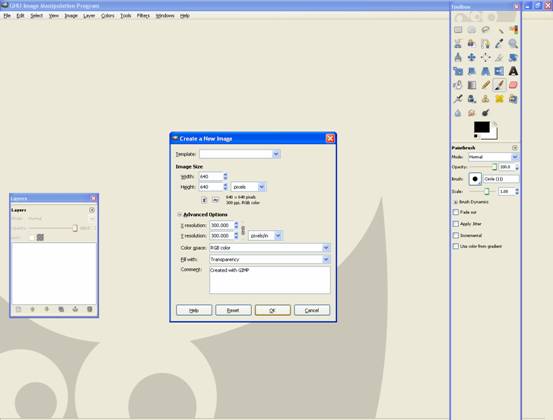
640 x 640 with 300 pi
Is should look like this:
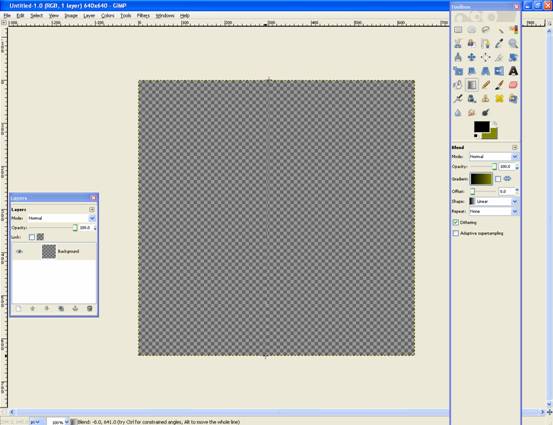
New Document
Now select your colours (mine are black and dark-green) –> then use the Gradient Tool.
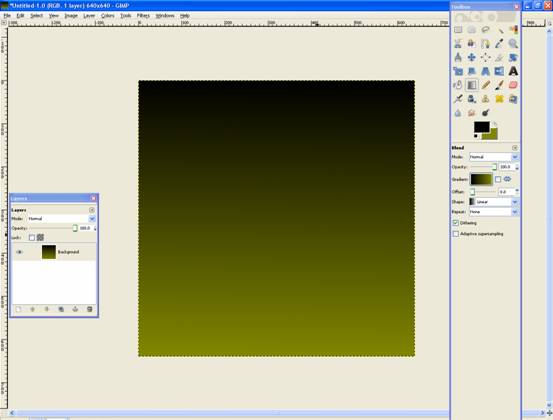
Gradient Tool
You should get a nice gradual coloured “background” like this:
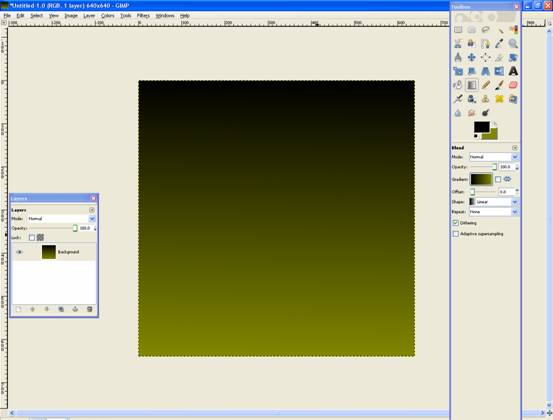
Making a background
Now think of 2 letters that might be good for your logo (SP=Scott Photographics) –> choose your font(Sans Bold Italics) and colour (white):
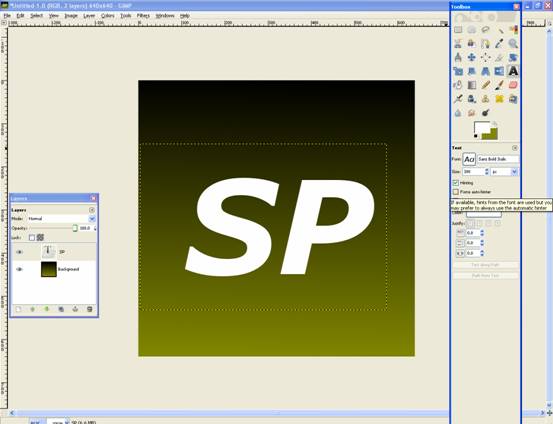
SP = Scott Photographics
Select the Eclipse Tool and put a 1/4 of the circle on your logo:
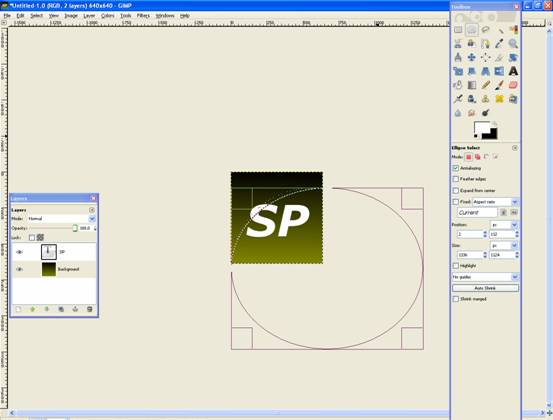
Eclipse Tool
Then go to Select–>Invert (or Ctrl + I), this will invert your selection.
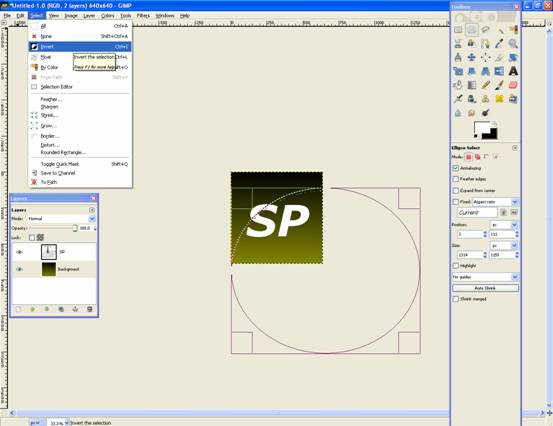
Select-->Invert
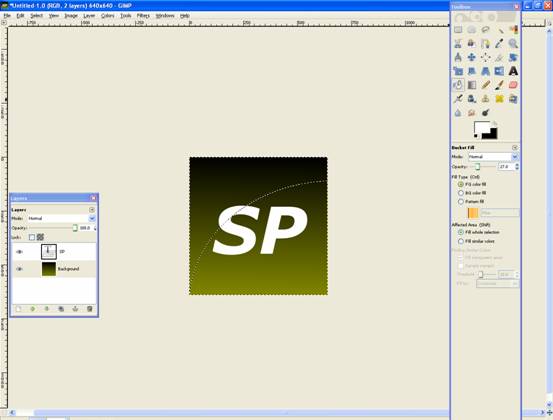
Selection
Now use the Bucket Tool with colour White and make sure the settings are: FG colour Fill, Fill Whole Selection and Opacity ~27.0.
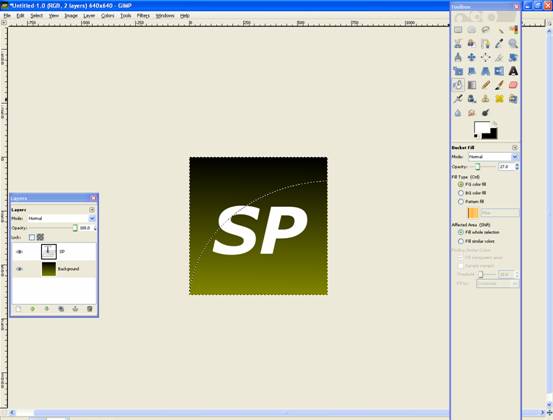
Bucket Tool
Fill the Selection:
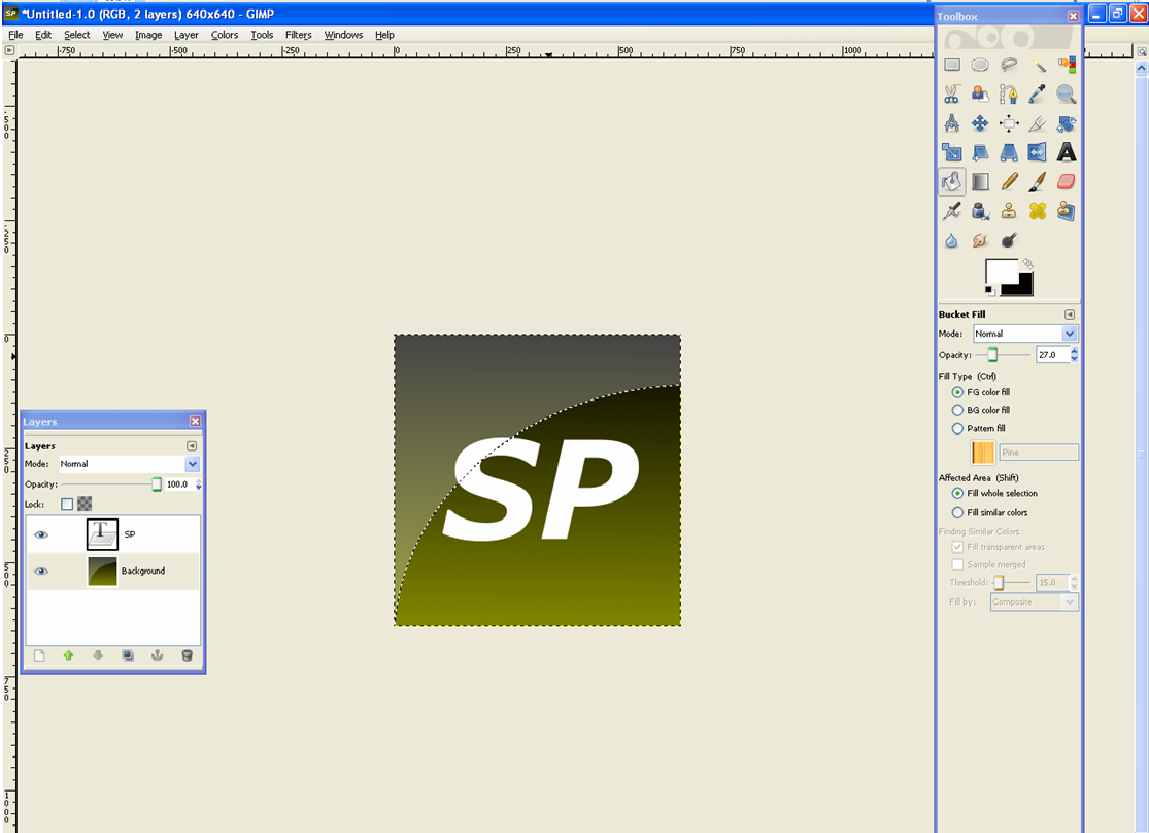
Fill the Selection
Then Deselect (or Ctrl+Shift+A).
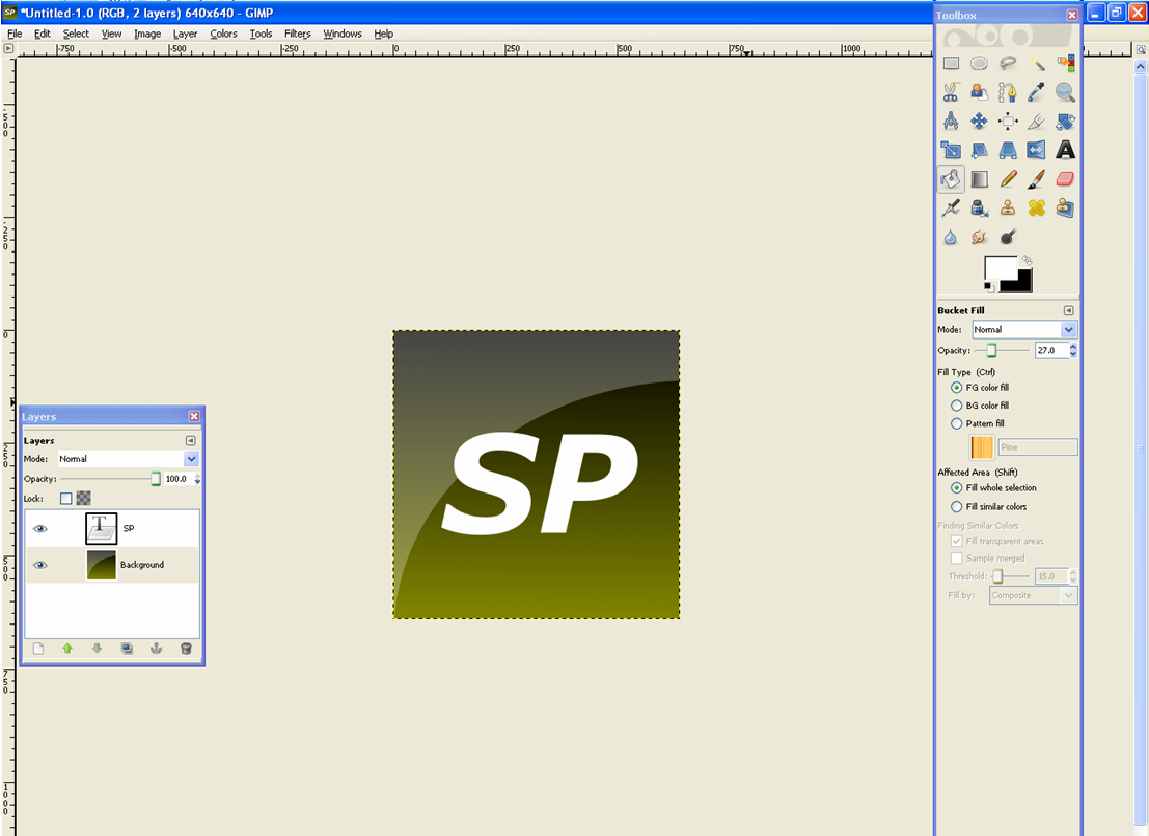
Deselect
That is all, you now have an awesome Logo with a sense of depth and reflectivity!

That's it!
Written by Mike

Deprecated: Function the_author_description is deprecated since version 2.8.0! Use the_author_meta('description') instead. in /home/scottp12/public_html/wp-includes/functions.php on line 6121
Michael Scott is the publisher and photographer behind Scott Photographics! He is very passionate about his photography and enjoys sharing the best of his experiences for others to enjoy too! Contact Mike via email!


Deprecated: Function get_users_of_blog is deprecated since version 3.1.0! Use get_users() instead. in /home/scottp12/public_html/wp-includes/functions.php on line 6121
This is a very good post! Keep them comming!
Deprecated: Function get_users_of_blog is deprecated since version 3.1.0! Use get_users() instead. in /home/scottp12/public_html/wp-includes/functions.php on line 6121
Thanks for the nice simple tutorial:)