


Text Reflection
A simple GIMP tutorial detailing how to make elegant text reflections that look great!

Achieve this effect in minutes!
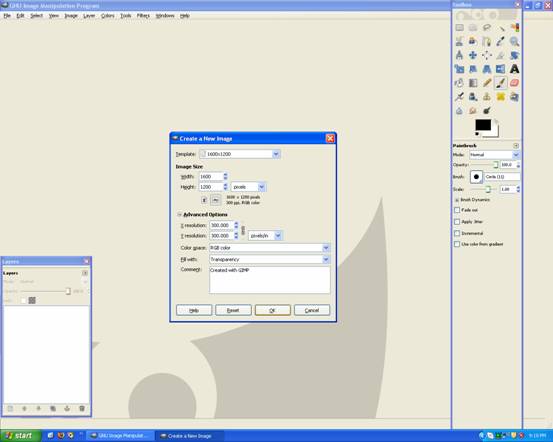
Begin by opening up Gimp –> make a 1600 x 1200 with 300 DPI page and transparency.
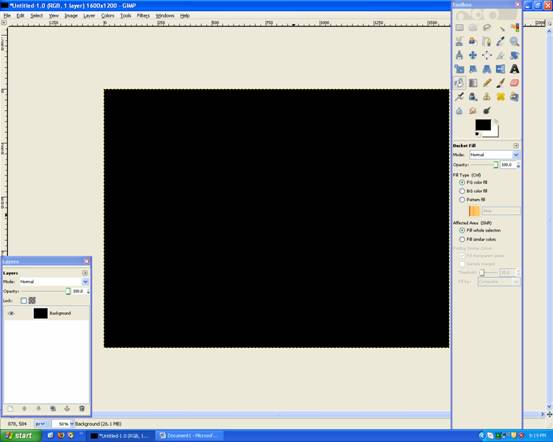
Now grab the paint bucket and fill it black:
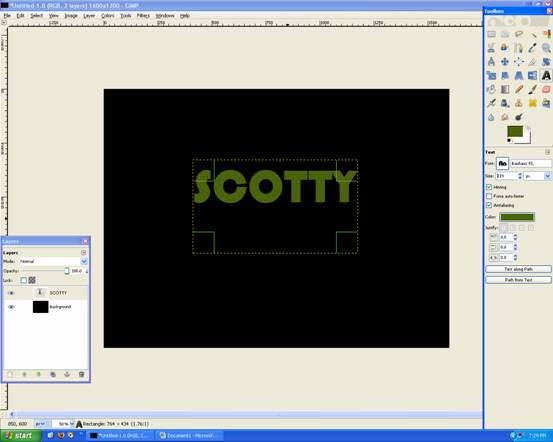
Add some text in the middle.
Then grab the Eclipse Tool and select the top half of the text (like below)
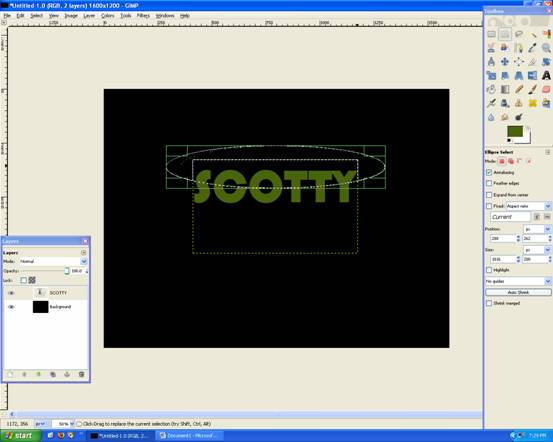
Then go to Layer –> Transparency –> Intersect with Selection
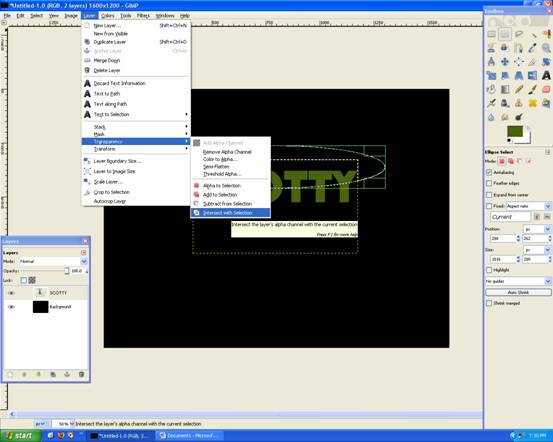
Now grab the Gradient Tool and set to FG Only:White
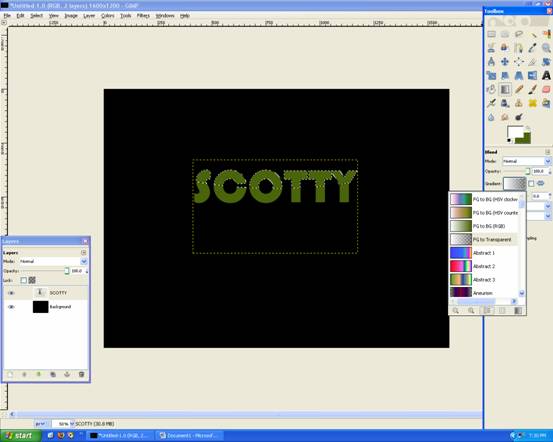
Set the Opacity to around: 25%-50%
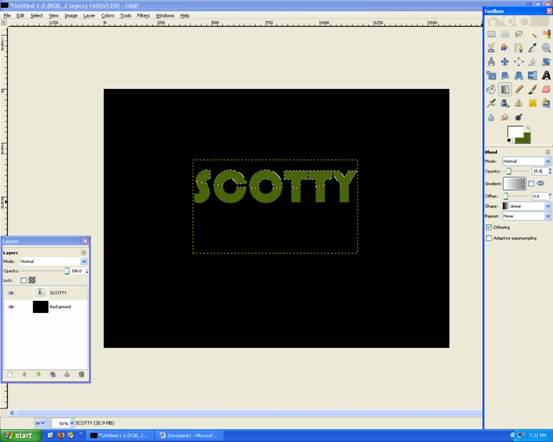
Apply the Gradient like below:
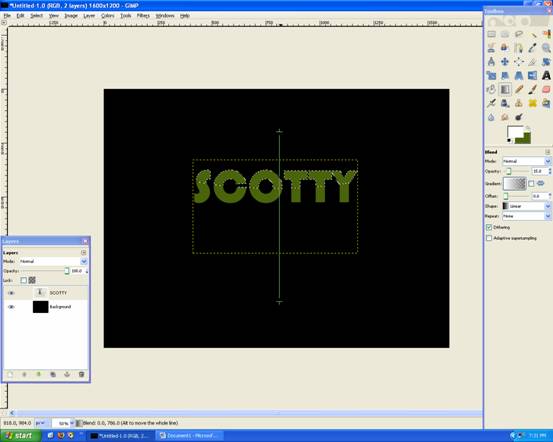
Should look like this now, with a lighter top half. This gives a sense of depth!
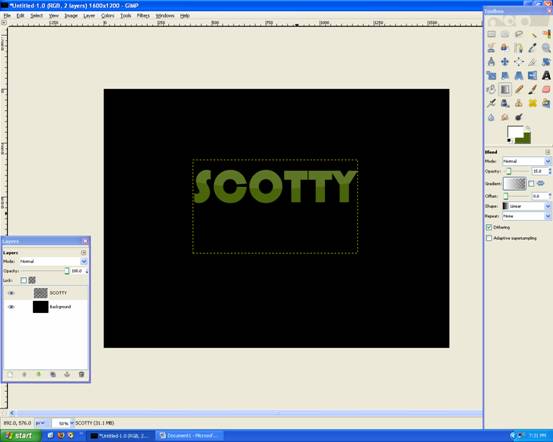
Now go Duplicate Layer (the text layer)
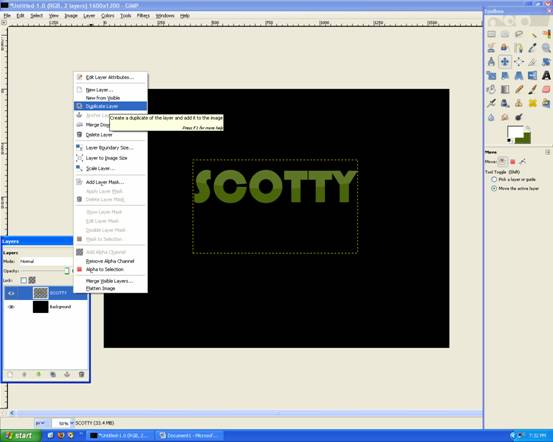
Then Rotate it 180degrees (Layer –> Transform –> Rotate 180) and Flip it the other way (Shift + F)
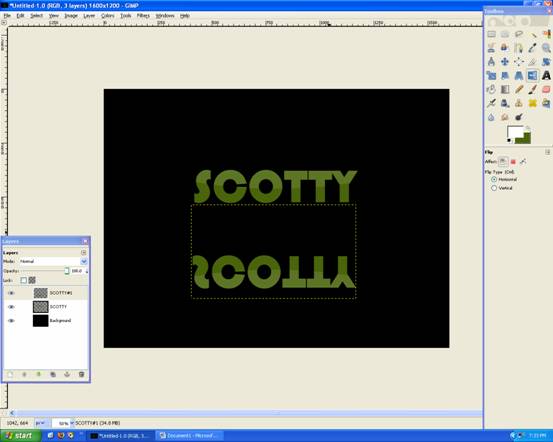
Then move it up so there is only a slight gap, like below:
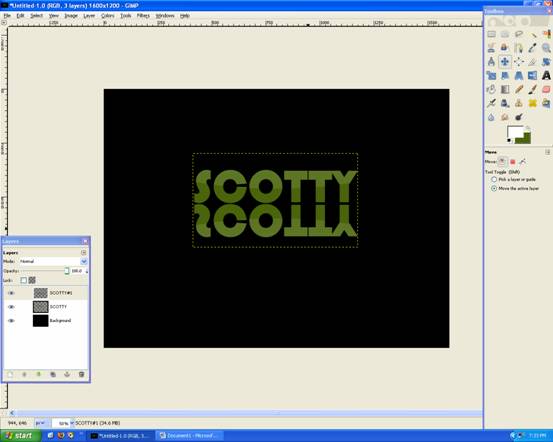
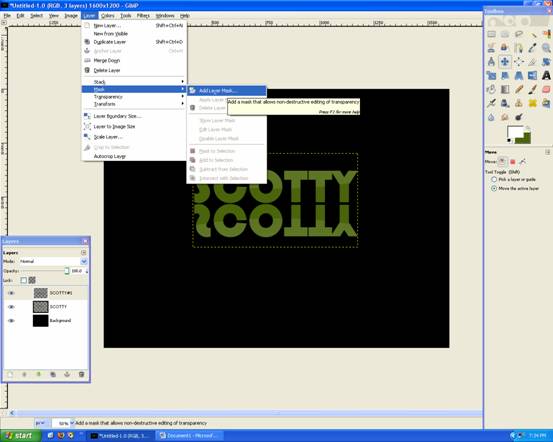
Now go Layer –> Mask –> Add Layer Mask , this will allow us to make changes to the text and nothing else!
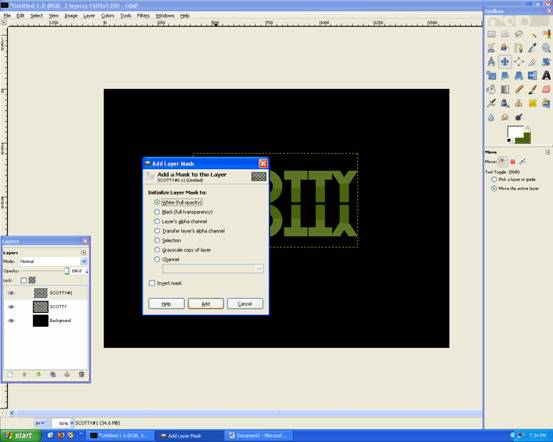
Choose WHITE (Full Opacity)
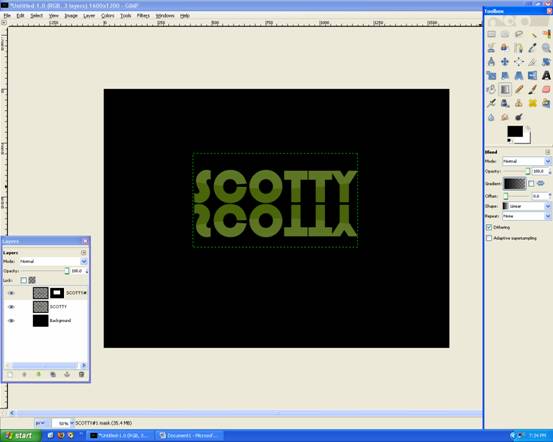
Now grab The Gradient Tool and set it to FG Only: Black , with 100% Opacity
Apply Gradient Tool like below:
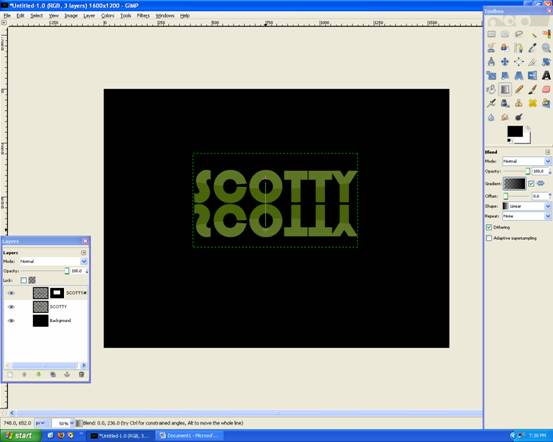
You’re done!

Written by Mike

Deprecated: Function the_author_description is deprecated since version 2.8.0! Use the_author_meta('description') instead. in /home/scottp12/public_html/wp-includes/functions.php on line 6121
Michael Scott is the publisher and photographer behind Scott Photographics! He is very passionate about his photography and enjoys sharing the best of his experiences for others to enjoy too! Contact Mike via email!


Deprecated: Function get_users_of_blog is deprecated since version 3.1.0! Use get_users() instead. in /home/scottp12/public_html/wp-includes/functions.php on line 6121
Thanks Brandon :) The font for “Scotty” is Bauhaus 93!
Deprecated: Function get_users_of_blog is deprecated since version 3.1.0! Use get_users() instead. in /home/scottp12/public_html/wp-includes/functions.php on line 6121
Thanks! exactly what I was looking for! What font do you use in this tutorial?