


Animated FavIcon in GIMP
In this tutorial, I’ll give to a step-by-step guide on how to really stand out from your competitor sites by making an animated GIF FavIcon.

Animated GIF FavIcon
First of all… (You can view images larger by Right Click –> View Image)
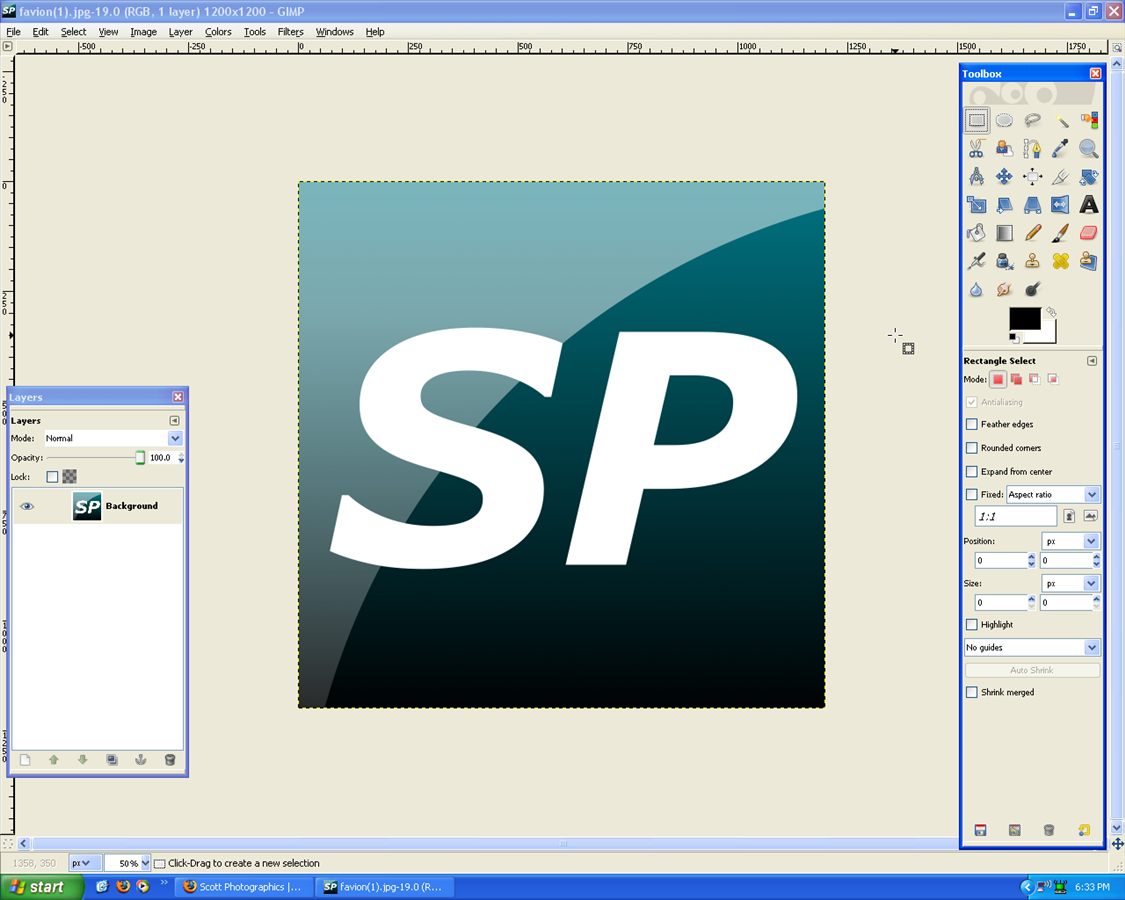
Create your Logo
Begin by opening up Gimp –> and opening up your FavIcon, if you don’t have one then checkout my Logo Tutorial!
You may need to scale down your image.
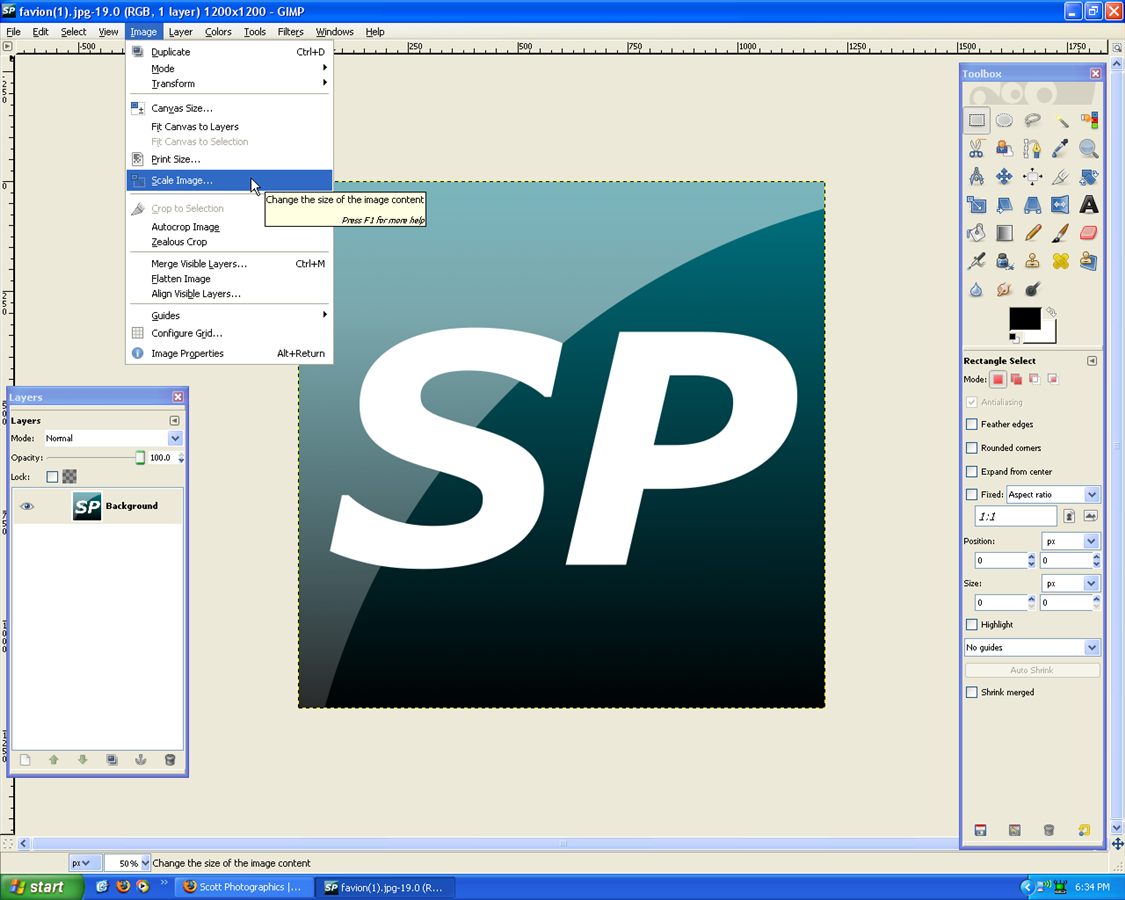
Scale Image
To around 120 x 120 pixels, with 300 dpi.
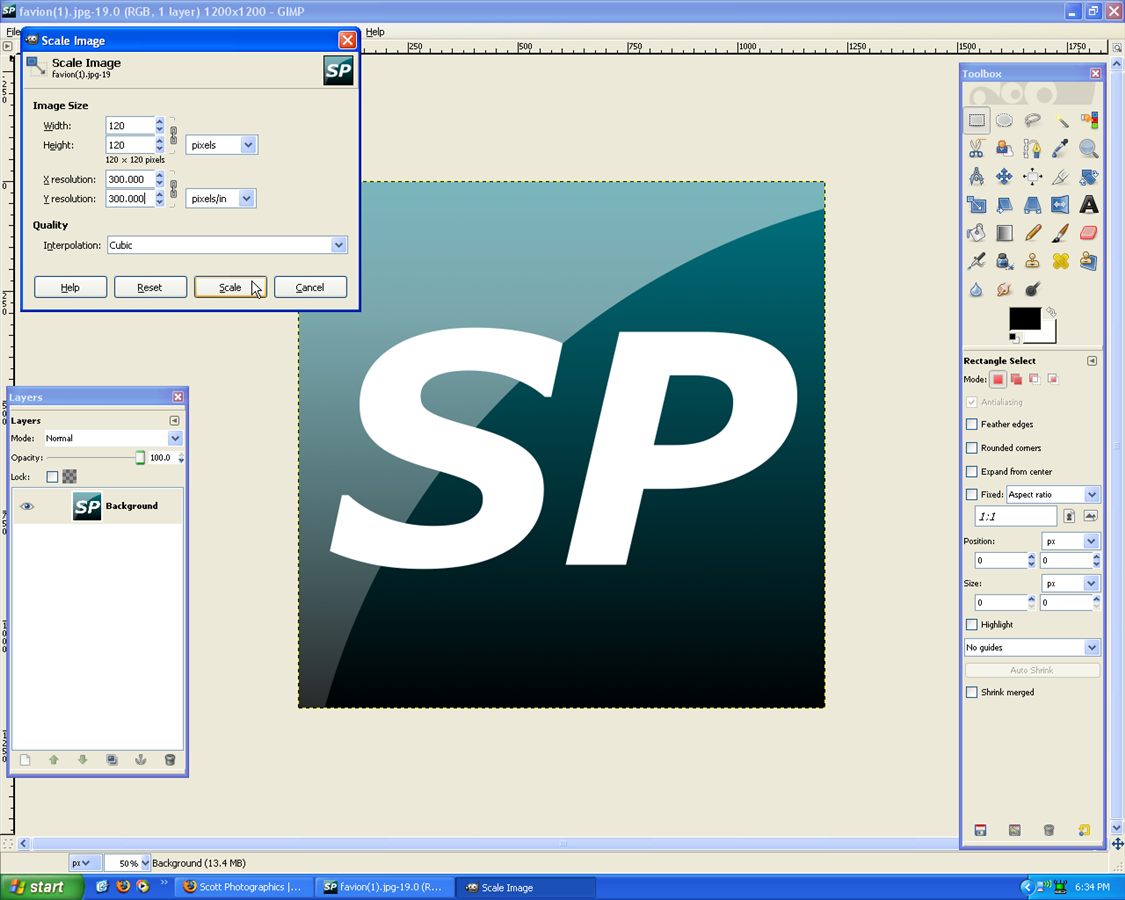
Scaling
Now go Filters –> Animation –> Spinning Globe.

Spinning Globe
Set the frames to 20, Transparent background (your choice), Index ~81 (depends on your colours), work on copy (unless you want it separate).
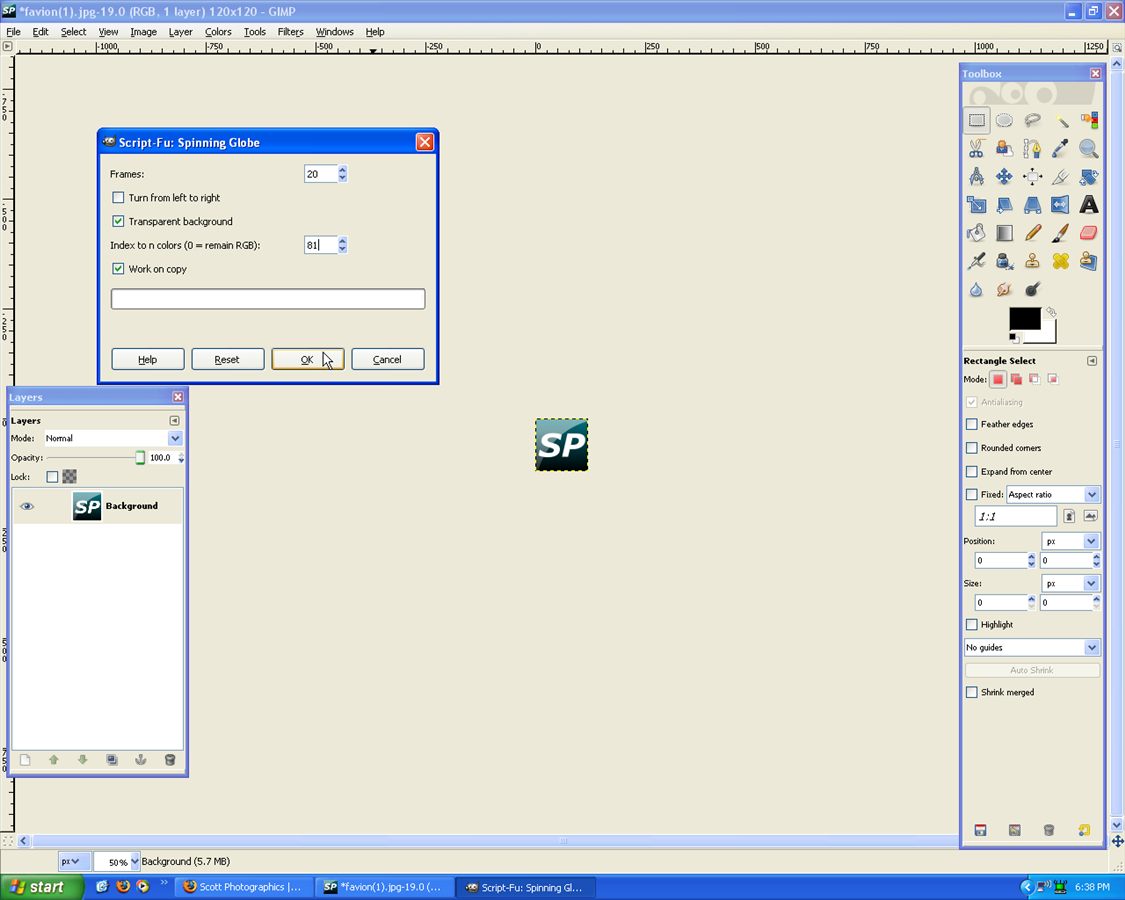
Settings
It should look like this:
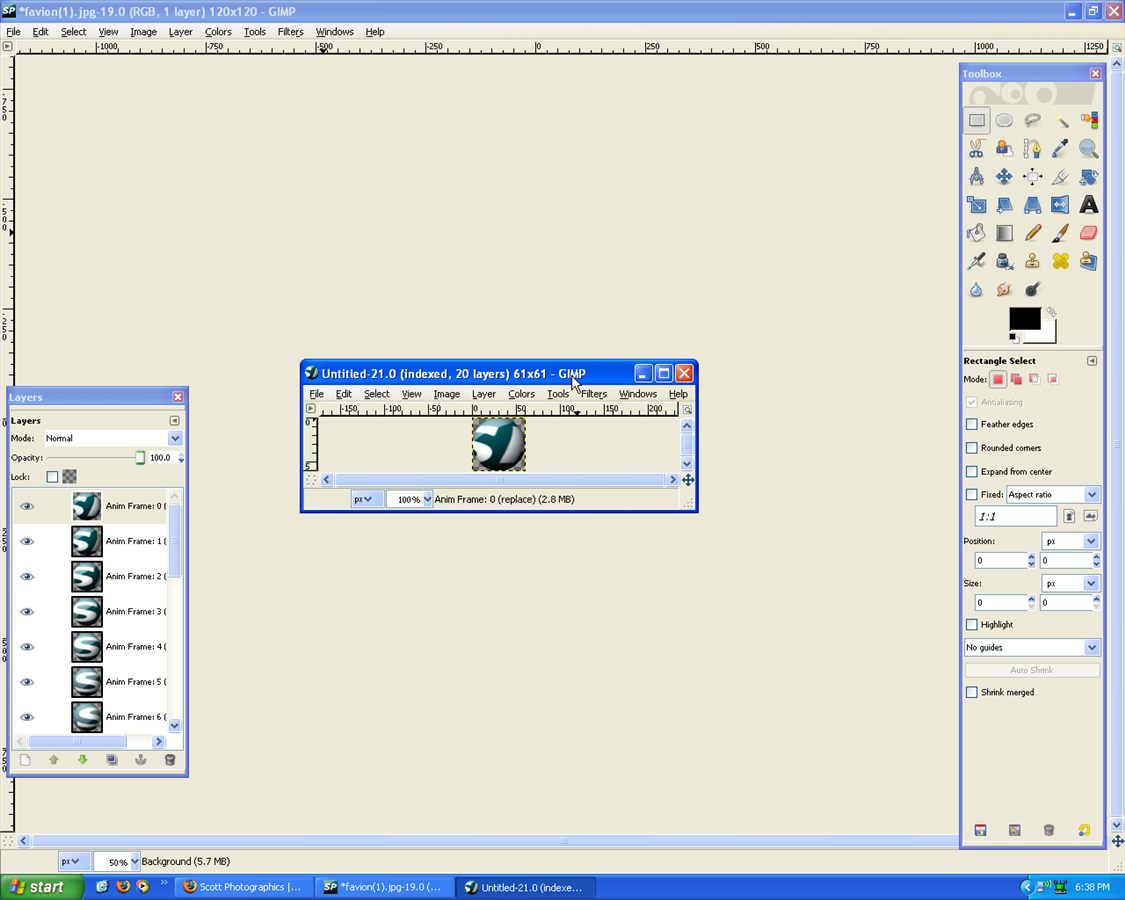
Like this
On that window go, Filters –> Animation –> Playback!

Playback
There you have it!
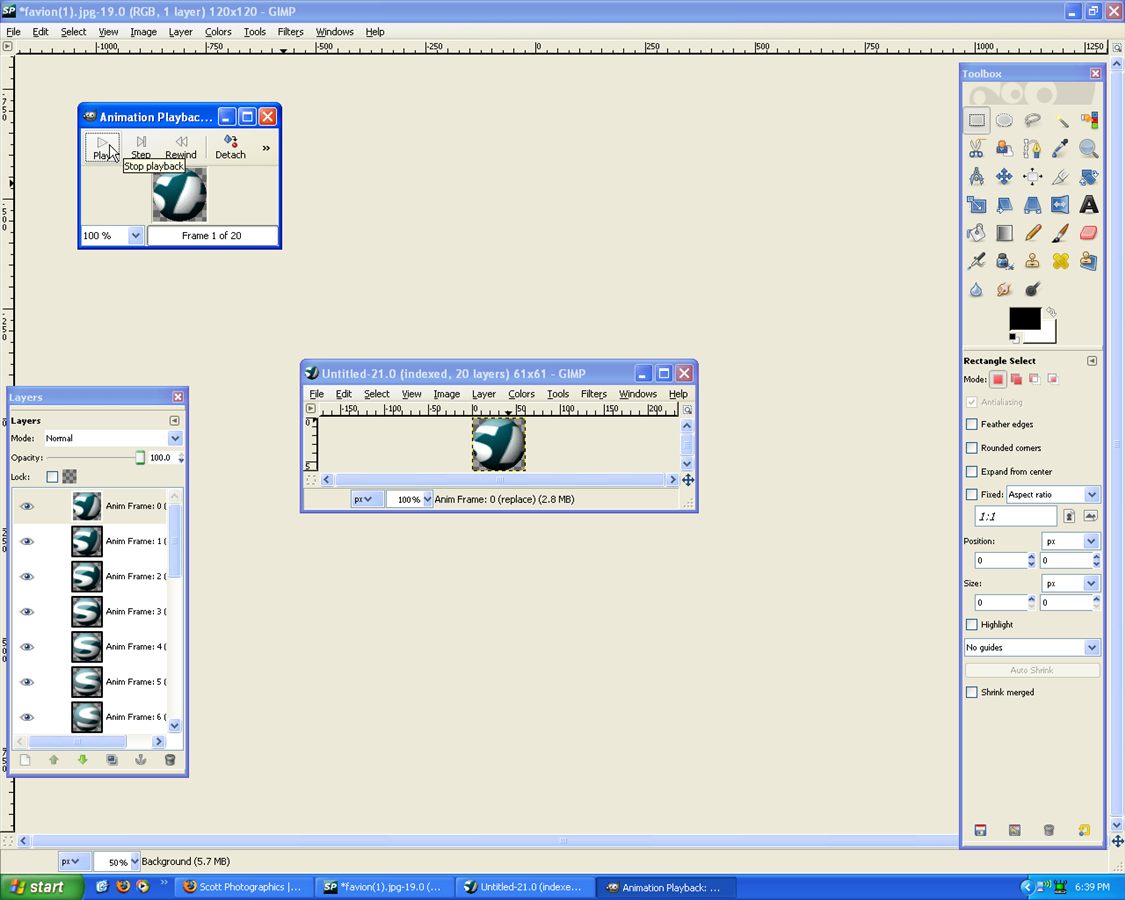
That's it!
Now Save As:
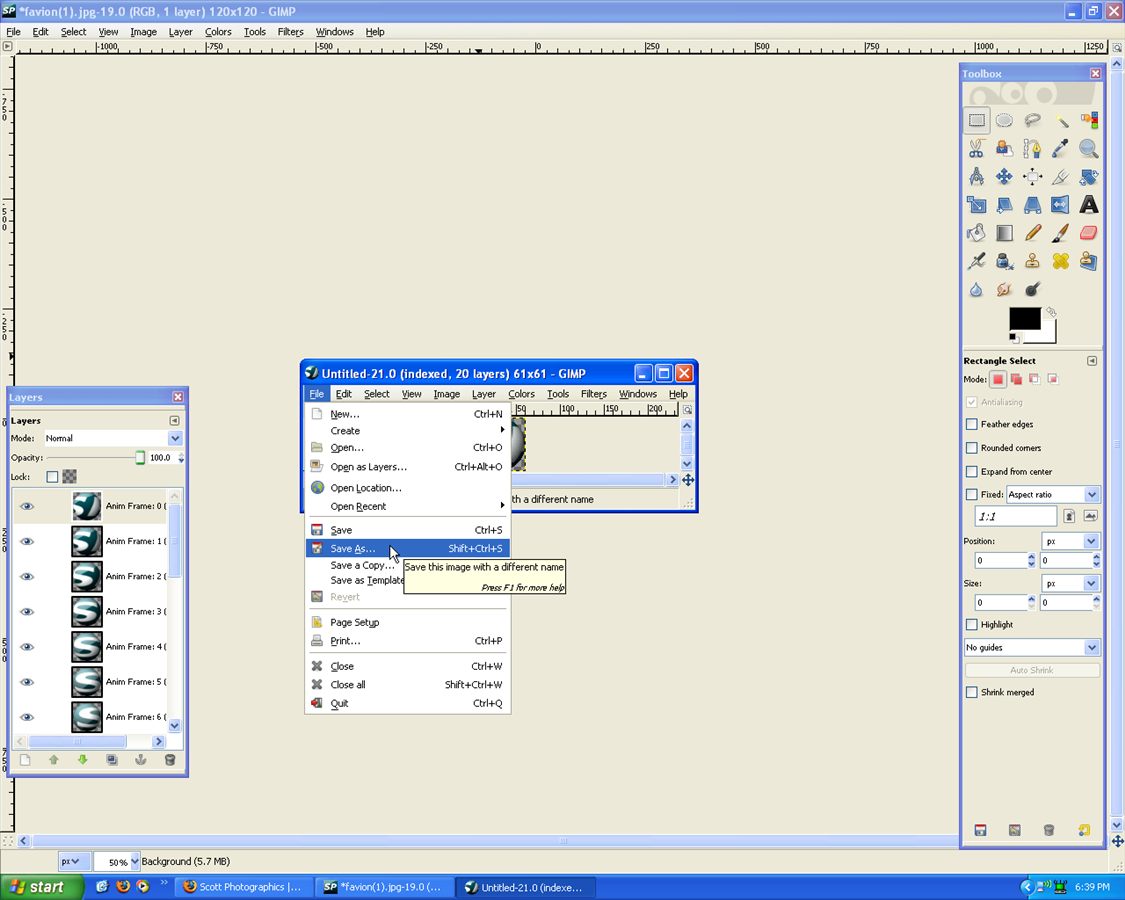
Save As
Save as Animation:
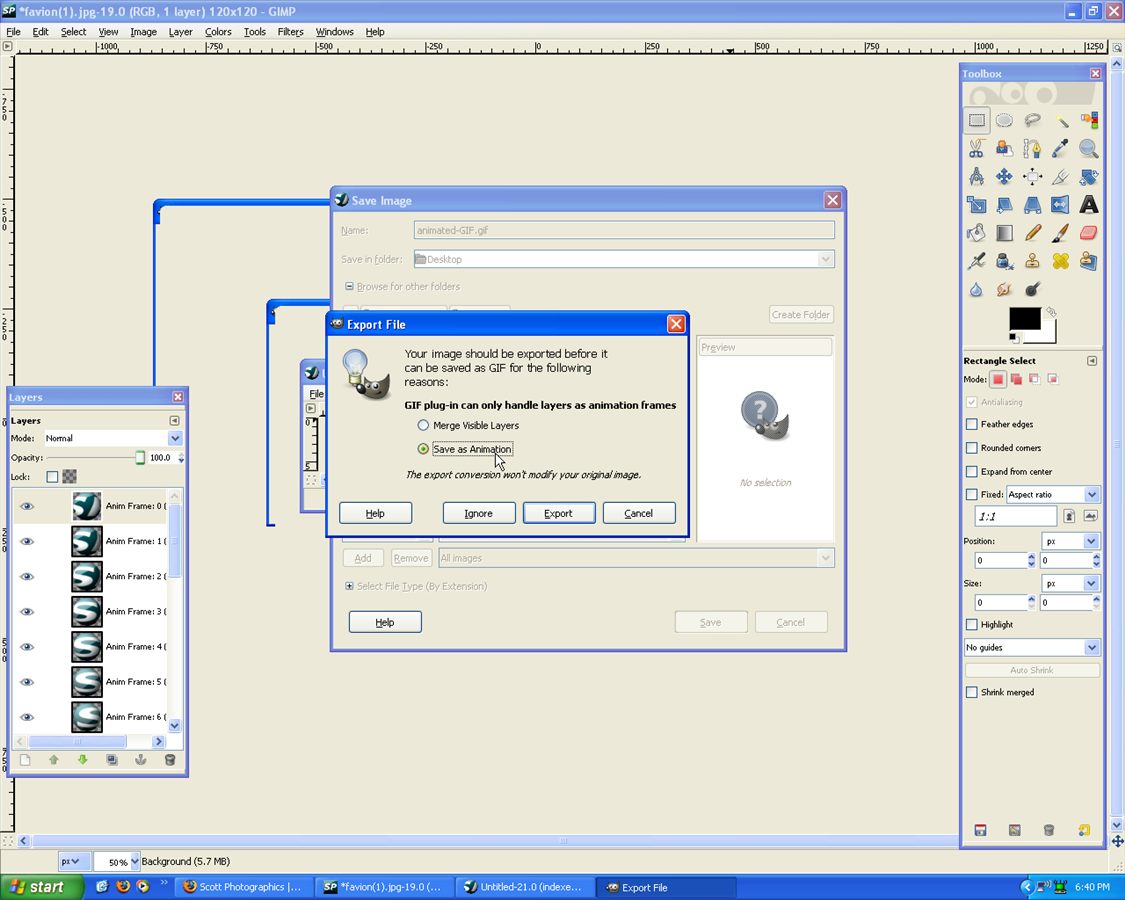
As Animation
You’ll want: Loop Forever, and 0 delay:
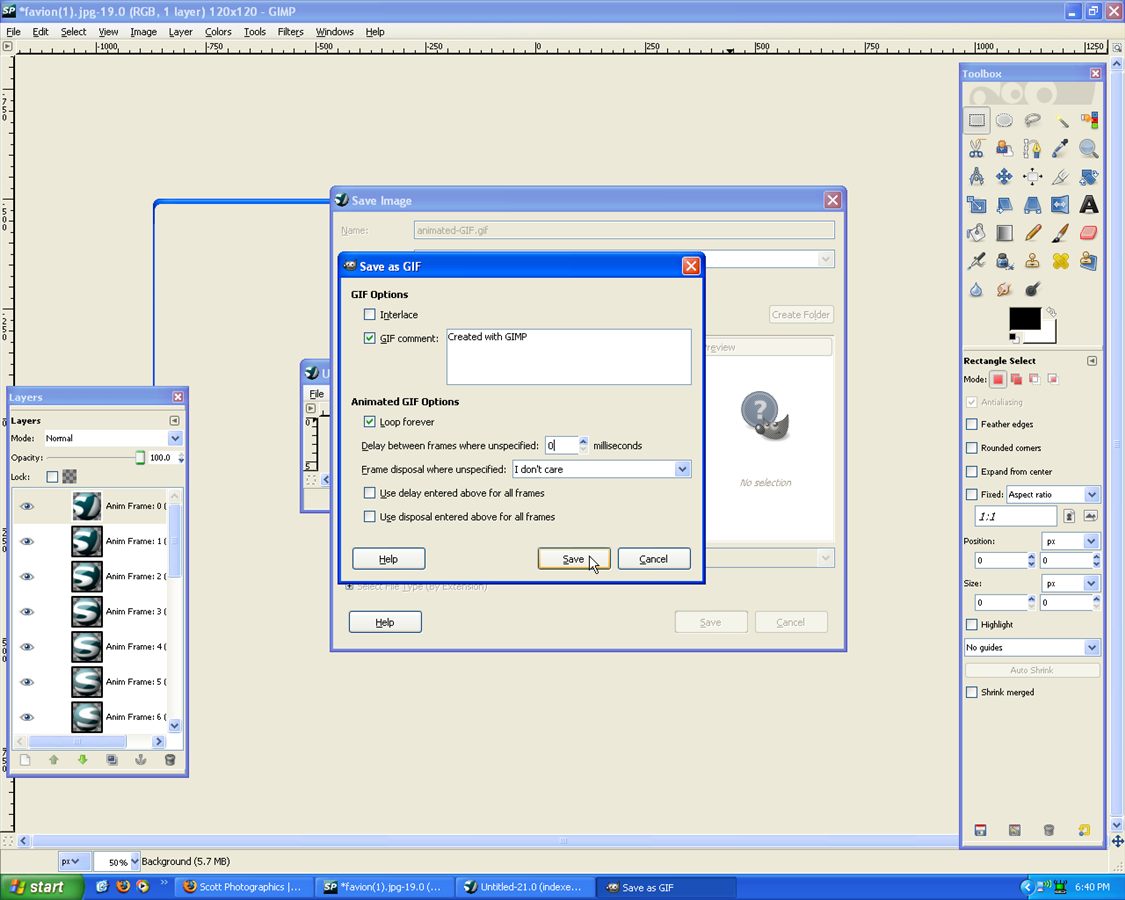
Loop Forever
And that’s it!
Installation:
1.You need to upload it to your Webhost directory in your images file
2.Add this code just before the </head> on all your pages. If you have WordPress: Just in your header.php
Code: Replace “Animated-GIF.gif” with your favicon name.
- <link rel=”icon” href=”images/favicon.gif” type=”image/gif” >
and your original FavIcon, just in case:
- <link rel=”shortcut icon” href=”images/favicon.ico” >
Please comment, if you have any questions just comment below!
Written by Mike

Deprecated: Function the_author_description is deprecated since version 2.8.0! Use the_author_meta('description') instead. in /home/scottp12/public_html/wp-includes/functions.php on line 6121
Michael Scott is the publisher and photographer behind Scott Photographics! He is very passionate about his photography and enjoys sharing the best of his experiences for others to enjoy too! Contact Mike via email!


Deprecated: Function get_users_of_blog is deprecated since version 3.1.0! Use get_users() instead. in /home/scottp12/public_html/wp-includes/functions.php on line 6121
Sorry to post, I just realized what I was doing wrong. Thanks again!!
Deprecated: Function get_users_of_blog is deprecated since version 3.1.0! Use get_users() instead. in /home/scottp12/public_html/wp-includes/functions.php on line 6121
Great site!! Very helpful! I have tried this “tut”, spinning globe and it works great. Is there a way to retain the transparent background? Thanks!
Deprecated: Function get_users_of_blog is deprecated since version 3.1.0! Use get_users() instead. in /home/scottp12/public_html/wp-includes/functions.php on line 6121
Thanks i was finding for my website animation favicon
now i got it thanks
thanks
vikey
Deprecated: Function get_users_of_blog is deprecated since version 3.1.0! Use get_users() instead. in /home/scottp12/public_html/wp-includes/functions.php on line 6121
i would like to ask some questions for my animation in gimp…
Deprecated: Function get_users_of_blog is deprecated since version 3.1.0! Use get_users() instead. in /home/scottp12/public_html/wp-includes/functions.php on line 6121
Thanks, that was just what I needed – using it on my site now :-)
Deprecated: Function get_users_of_blog is deprecated since version 3.1.0! Use get_users() instead. in /home/scottp12/public_html/wp-includes/functions.php on line 6121
Interesting site. Thx
Deprecated: Function get_users_of_blog is deprecated since version 3.1.0! Use get_users() instead. in /home/scottp12/public_html/wp-includes/functions.php on line 6121
Hi Joe,
Chrome does not support animated favicons I believe, nor IE!
Deprecated: Function get_users_of_blog is deprecated since version 3.1.0! Use get_users() instead. in /home/scottp12/public_html/wp-includes/functions.php on line 6121
Does not seem to display properly in internet explorer or chrome. only firefox! any suggestions email jpziii@gmail.com
Deprecated: Function get_users_of_blog is deprecated since version 3.1.0! Use get_users() instead. in /home/scottp12/public_html/wp-includes/functions.php on line 6121
Hi Massenjer,
I have tried to replicate your problem but wasn’t able to!?
What kind of file is it – photo, text, etc.
I did find that if you have removed a layer or it is transparent it made a gap, but that is probably not the case for you.
I’m curious to work this one out, if you want to give me a link to the image and I’ll try and fix the problem!
Thanks,
Michael
Deprecated: Function get_users_of_blog is deprecated since version 3.1.0! Use get_users() instead. in /home/scottp12/public_html/wp-includes/functions.php on line 6121
Great tutorial, many thanks, I just seem to have a slit around the back of the ball that I can’t get rid of, I can see the text from opposite side of the ball through it
Deprecated: Function get_users_of_blog is deprecated since version 3.1.0! Use get_users() instead. in /home/scottp12/public_html/wp-includes/functions.php on line 6121
AWESOME!!!
Thank you for taking the time to share your knowledge!